SimExporter GUI
The SimExporter graphical user interface (GUI) is a tool for exporting data from Maha Multics simulation results files to CSV files. This can be helpful if analyzing simulation results with software such as Microsoft Excel. The GUI is built on Plotly Dash and runs in a web browser, so it is compatible with most operating systems.
Installation
Follow the installation instructions to install the MahaUtils package on your computer with pip. Once this package is installed, SimExporter will be available.
Alternatively, if you just want to try out SimExporter or for any reason cannot install the package on your system, you can use GitHub Codespaces to test the GUI. Note that a GitHub account is required.

Command-Line Options
SimExporter is a graphical tool, but it must be launched from the command line. To run SimExporter, simply open a terminal (activating your virtual environment, if applicable), and run:
SimExporter
Note that there are several optional command-line arguments. To view these options, run:
SimExporter --help
One important option to notice is --port. SimExporter runs as a web app, and
this argument sets the port on which the app is served. For instance, to
launch a SimExporter instance on port 9876, run:
SimExporter --port 9876
Important
If running multiple SimExporter instances, be sure to use a different port for each instance.
Exporting Simulation Results Data
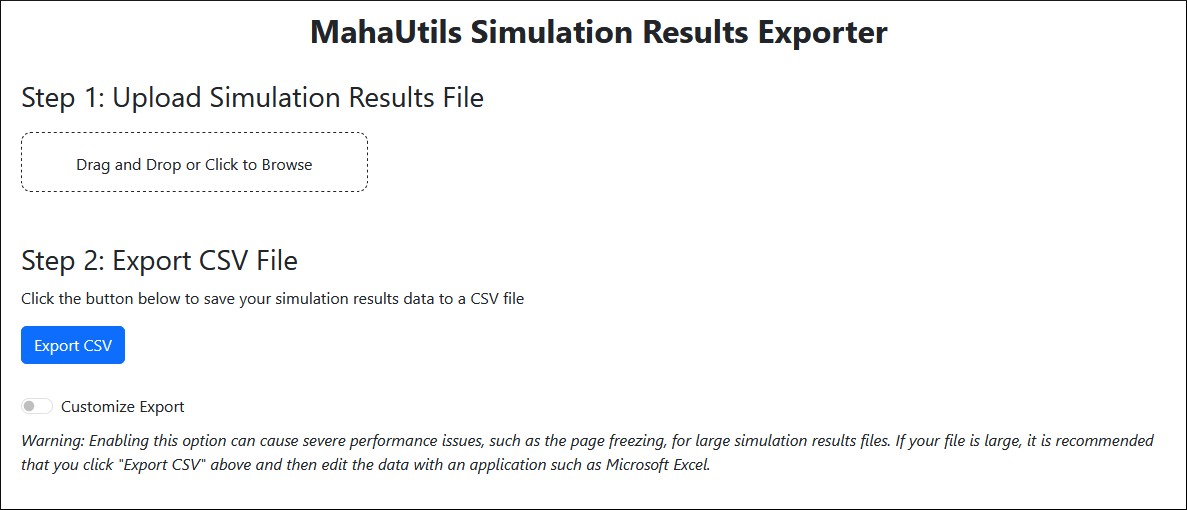
Once you’ve launched SimExporter, the user interface is relatively
self-explanatory. First, upload your simulation_results.txt file:

Then, click “Export CSV” to save the simulation results data to a comma-separated value (CSV) file:
Customizing Exported Data
Warning
For large simulation results files (with hundreds or more output variables), SimExporter performance may significantly decline and the page may become unresponsive. If this occurs, it is recommended that you simply click “Export CSV” to save all variables, and then remove unnecessary columns in Microsoft Excel or a similar tool.
Clicking the “Customize Export” dropdown provides access to additional options for exporting your data.
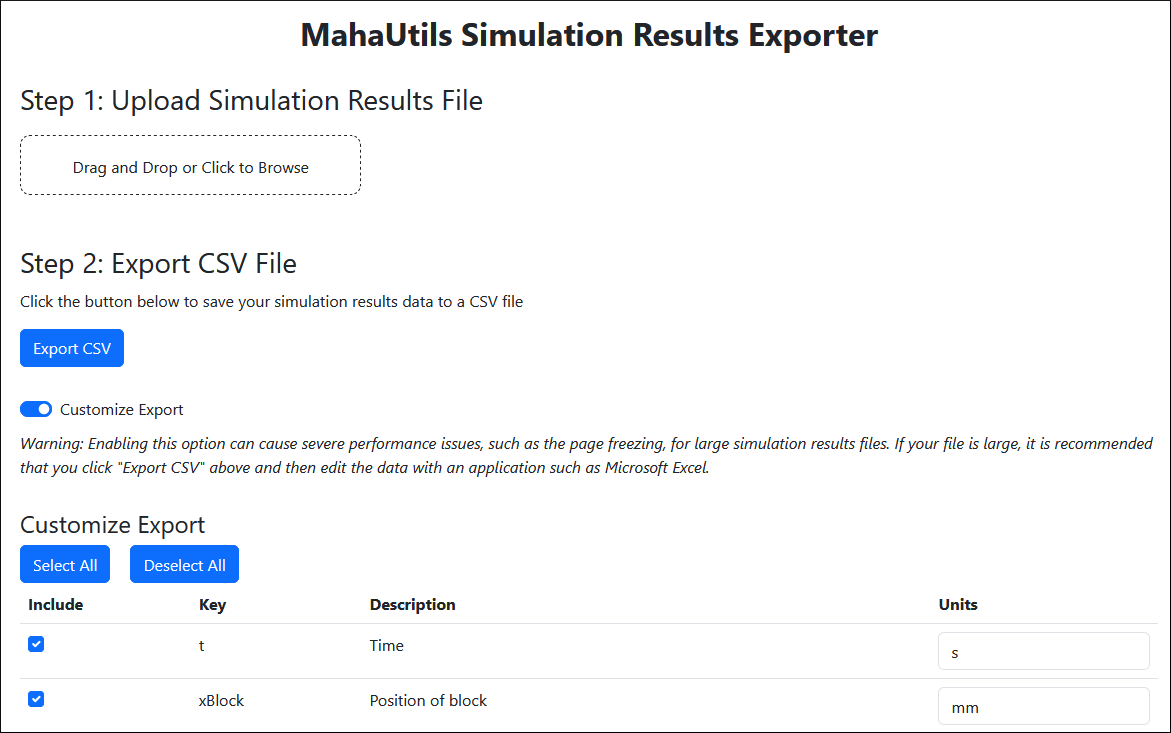
If you do not want to export all simulation results variables, simply uncheck any variables to suppress exporting them. Likewise, if you want to change the units of any exported data, edit the “Units” column.
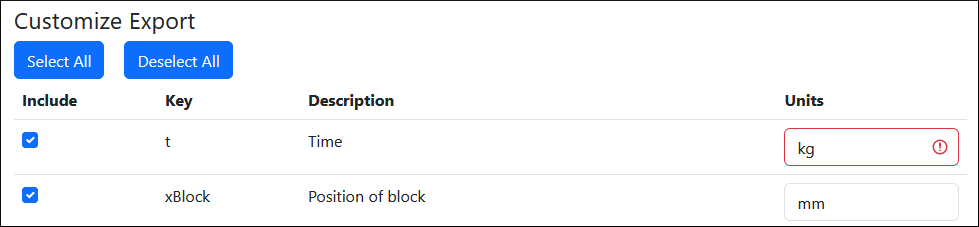
Note that if you provide invalid units (either not a valid conversion for the specified variable or not listed on the default unit converter page), an error will be displayed and the “Export CSV” button will be grayed out.